
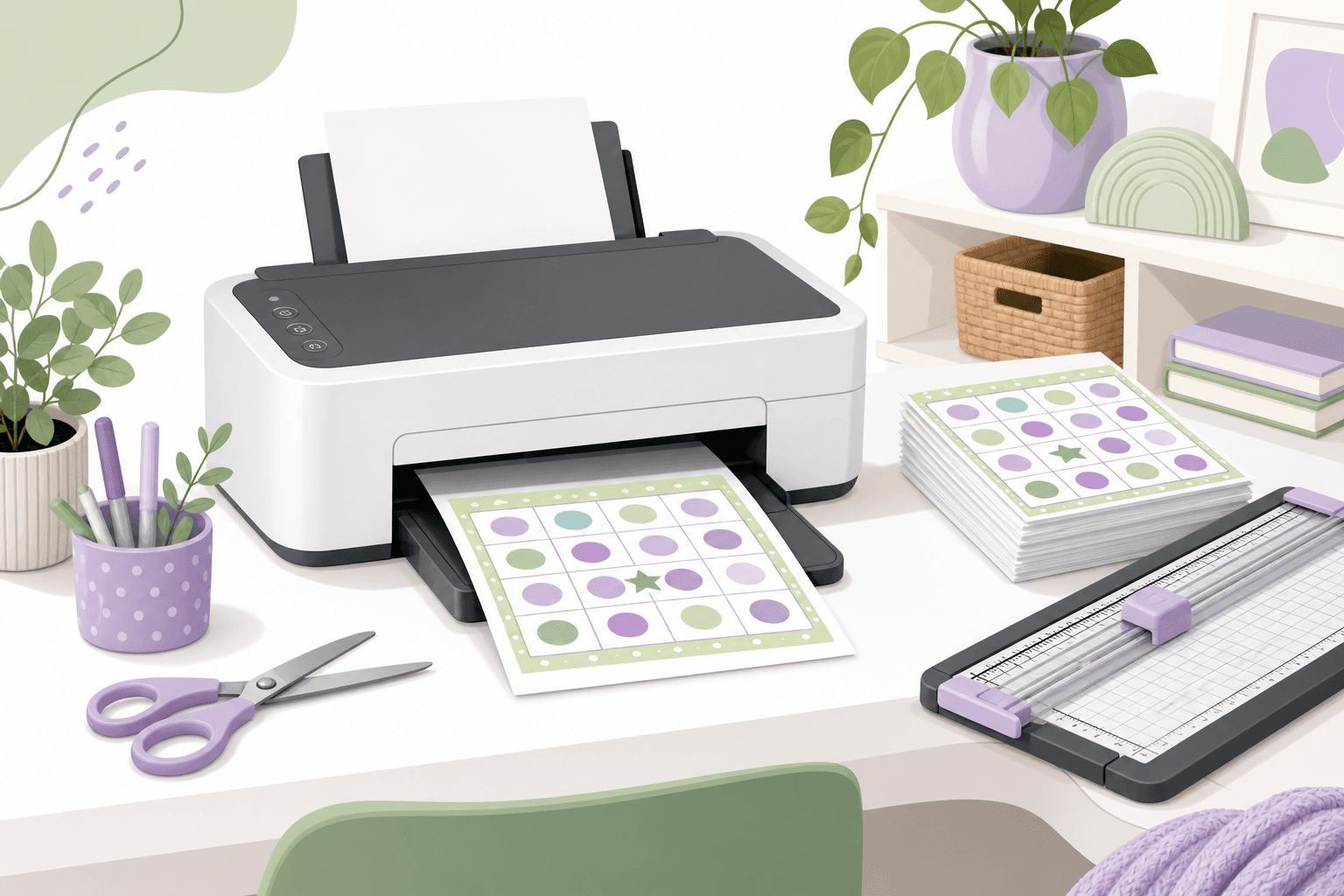
Start with the right paper
For most bingo PDFs, standard 20–24 lb letter paper (8.5×11" in the US) is ideal: it feeds reliably and keeps colors from soaking through. If you are in a region that uses A4, choose A4 in your print dialog so nothing is cropped at the edges.
- Picture bingo: slightly thicker paper (28–32 lb / "premium" copy paper) makes small icons pop and reduces show-through from the back.
- Lots of kids or reuse: consider cardstock (60–110 lb) if your printer supports it—feed from the manual tray if plain trays jam.
PDF "fit to page" is usually the culprit
Bingo grids are laid out on a fixed grid. When the viewer scales the page to fit the sheet, cells shrink and labels can look blurry or off-center.
- In your PDF viewer (Preview, Acrobat, Chrome), set scaling to Actual size or 100%, not "Fit" or "Shrink oversized pages."
- If the preview looks clipped, check paper size matches your loaded tray (Letter vs A4).
- Turn off auto-rotate and center unless you know you need it—sometimes it nudges art toward the margins.
Printer quality settings
For image-heavy cards, quality matters more than speed.
- Choose Best or High quality in the print dialog when printing picture bingo with lots of color.
- Plain text bingo can often use normal quality or a black-only mode to save ink.
- If lines look jagged, enable your driver's high-resolution or image optimization option (names vary by brand).
Margins, borders, and full-bleed
Consumer printers leave a non-printable border. That is normal. If your PDF already includes white margins, do not enable "borderless" unless you have tested it—borderless can crop the outer row of cells on some devices.
- Prefer the PDF's built-in margins over forcing edge-to-edge printing.
- If one edge is consistently cut off, use your printer's printable area or reduce scale slightly (98–99%) only as a last resort, then re-check readability.
Double-sided printing
Some packs place multiple cards per sheet. If you print duplex (two-sided), enable flip on long edge for most US letter layouts so front and back align predictably.
Print a single test page first—duplex alignment varies by printer model.
Cutting and organizing cards
- Use a paper trimmer for straight edges when sheets contain multiple cards.
- A corner rounder makes stacks safer for younger players.
- Print one extra sheet as a master answer key or caller reference before you cut everything apart.
Classrooms, reuse, and lamination
- Lamination or dry-erase pockets let you reuse the same boards with markers—great for centers and stations.
- If you laminate, print at high quality first; heat rollers can soften low-resolution art if the source file was scaled up from a tiny preview.
- Store uncut sheets flat under a book overnight to reduce curl before laminating.
Quick troubleshooting
- Everything looks tiny: check 100% / actual size; you may have "fit to printable area" on.
- Blotchy color: run a printhead cleaning cycle; draft mode may be on.
- Grayscale only: some viewers force gray—enable color in the print dialog for picture bingo.
Ready to build your deck?
Our image bingo flow outputs print-oriented PDFs after you pick a theme, and printable bingo themes are fastest when you want text-only cards.