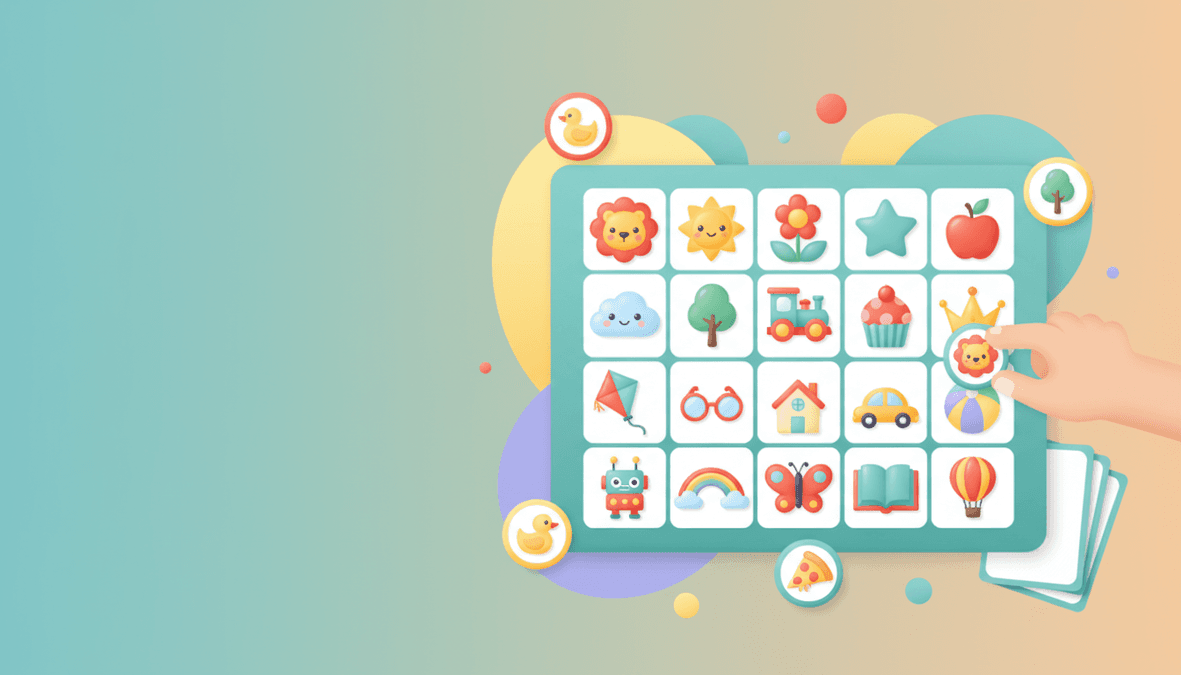
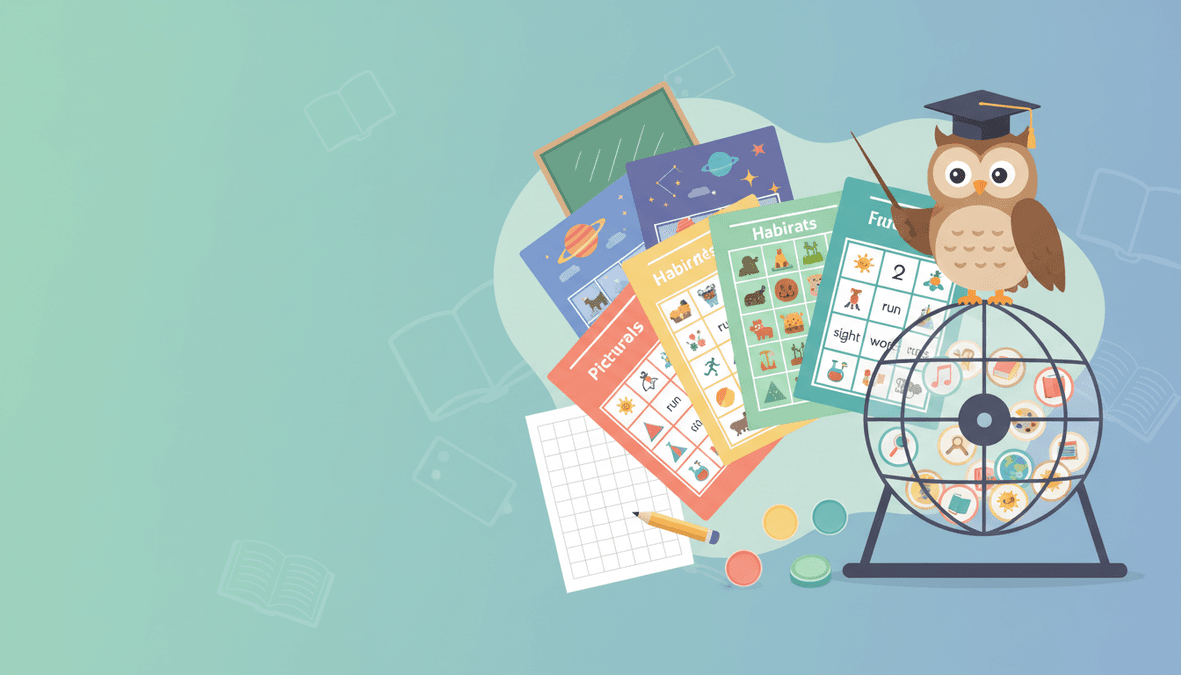
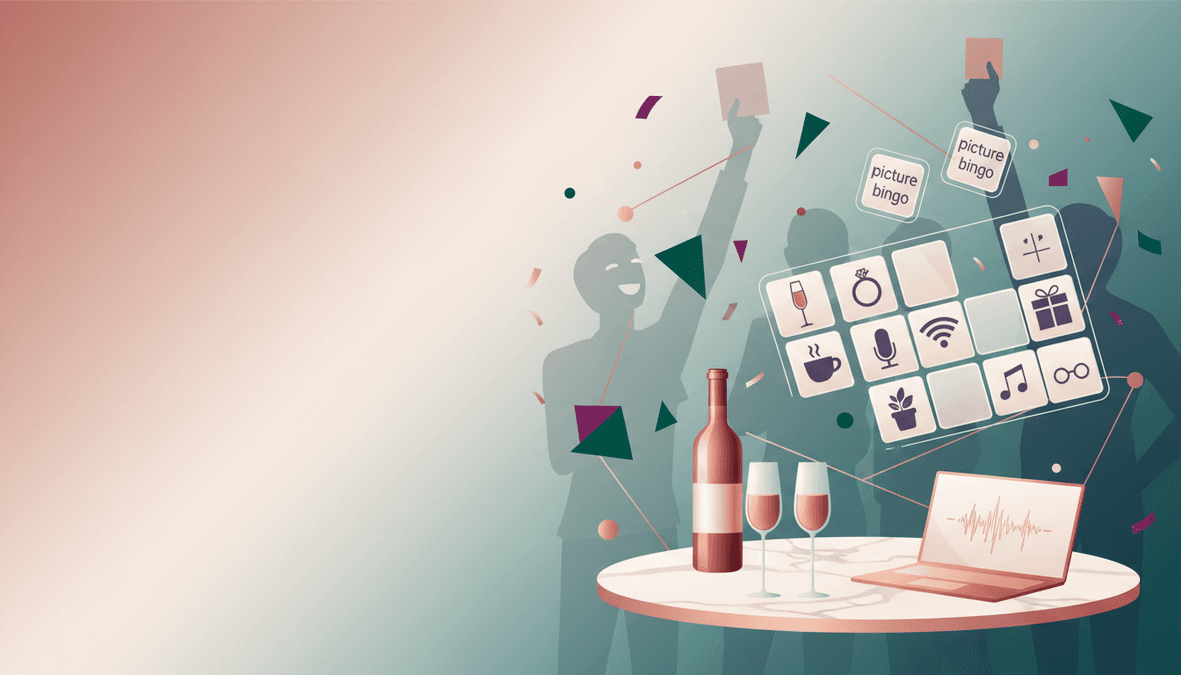
Modern AI bingo generators turn a short theme ("space bingo," "bridal shower bingo") into a full set of picture squares with consistent art style. Here is a workflow that works for classrooms, fundraisers, and living-room game nights.
Step 1: Choose a tight theme
Specific beats vague. "Ocean animals" will produce clearer icons than "fun stuff." If you are stuck, browse image bingo themes or sample cards for wording you can copy.
Step 2: Generate a preview card
Run one preview before you pay for a big pack. Check that:
- Text labels are readable at print size
- Icons look consistent (same flat style vs. mixed 3D)
- The center FREE space is obvious
Step 3: Decide how many unique cards you need
For a competitive game, duplicates should be rare. Estimate headcount, add a buffer, and pick a pack tier that matches. See how many unique bingo cards you need for quick math.
Step 4: Print with correct PDF settings
Always print at 100% / actual size so squares stay aligned. Our print tips guide covers fit-to-page mistakes, duplex alignment, and paper weight.
Step 5: Run a dry run
Print one sheet, cut if needed, and verify the caller flow (projector order, slide deck, or physical draw pile). Adjust contrast if older adults will play.
Start with a free preview
Open the image bingo builder and generate a sample board in seconds.
Make AI bingo cards →
When AI picture bingo beats DIY layouts
Docs and Canva work for one layout—but unique permutations, icon polish, and print margins get painful past ~10 players. Automation shines when you need many boards fast or recurring events (weekly classroom rounds, league nights).